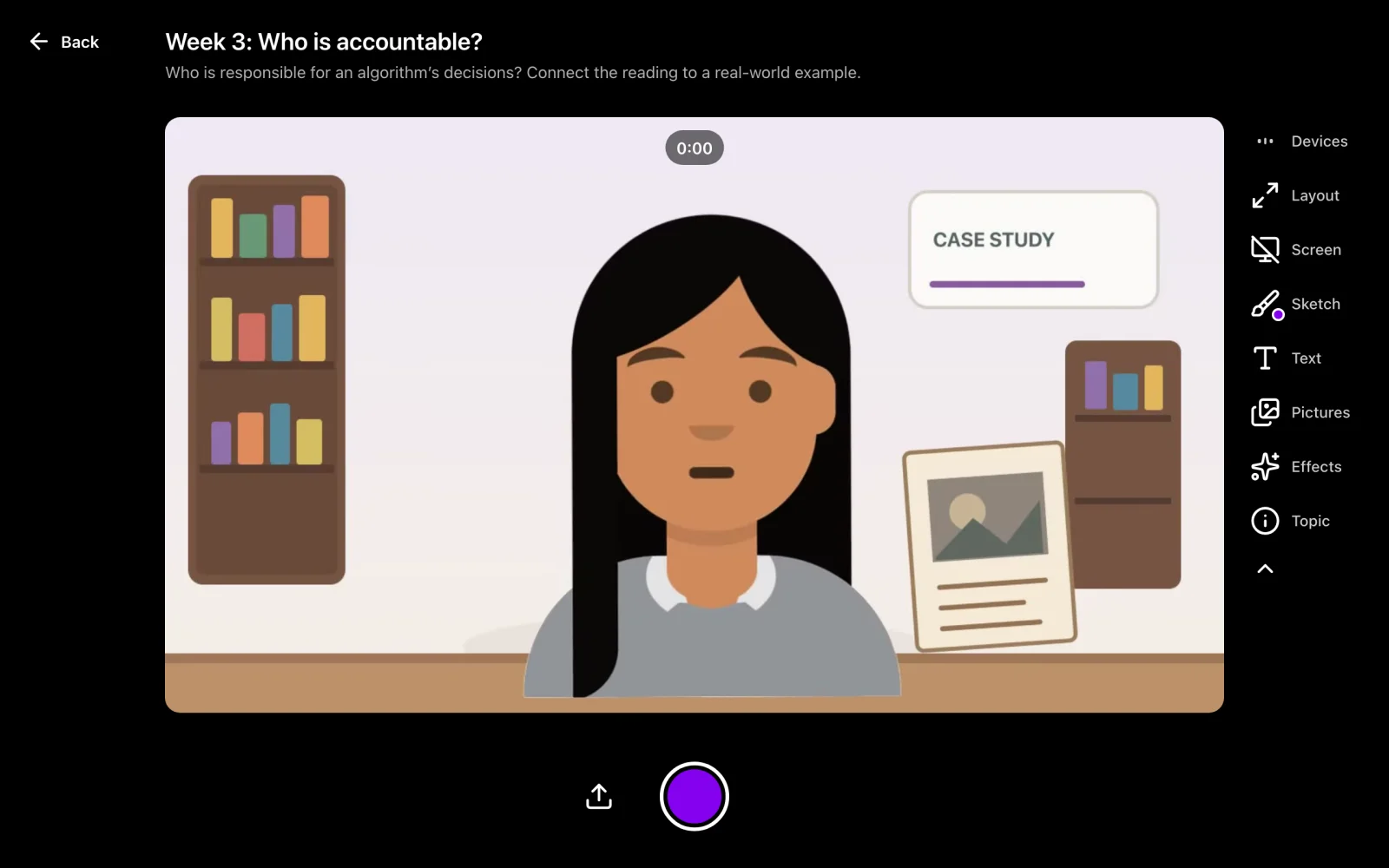
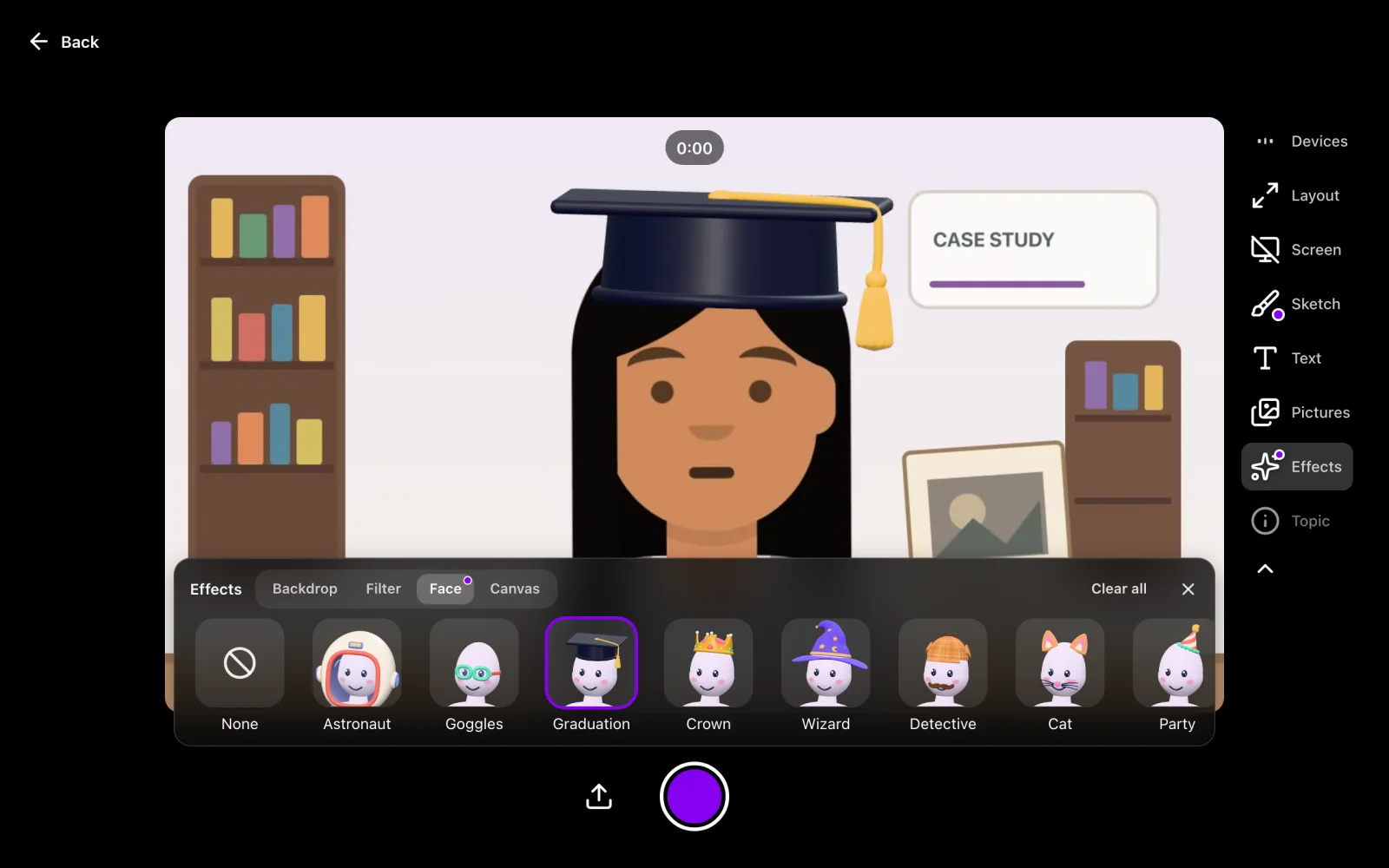
Start the recorder at the top of this page and allow the camera and microphone when your browser asks. Nothing is recorded until you press the record button.
Record, and pause when you need to
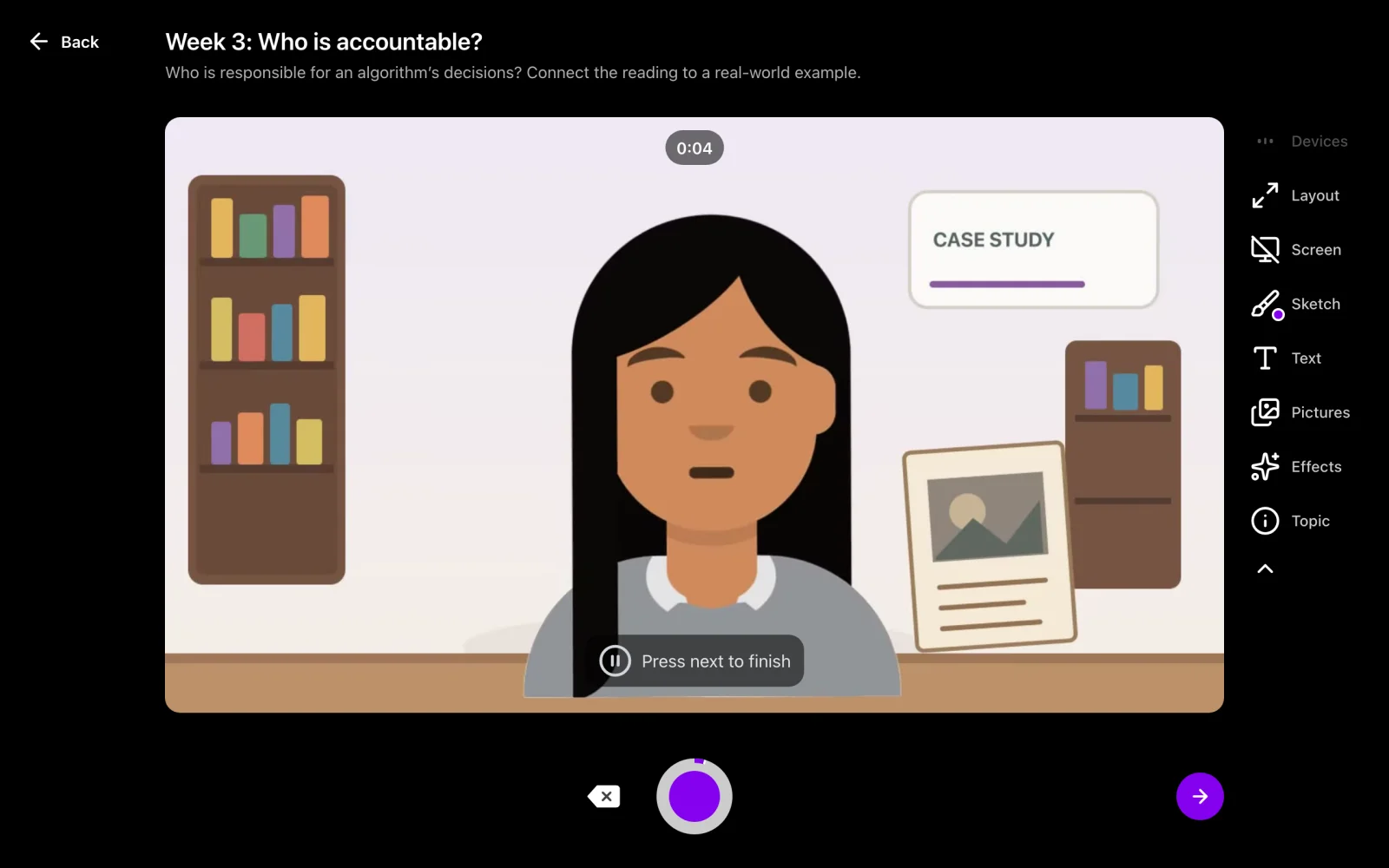
Press the round button to start. Press it again to pause, gather your thoughts, and carry on in the same video. The timer stops at 90 seconds.
Trim it and download
Choose Next to watch the take, drag the handles to trim the start and end, then choose Download to save an MP4 to your device.
What you can do while recording
Pause, and redo the last clip
Each pause ends a clip. If the last one went badly, delete just that clip and record it again; the timer rewinds to your previous pause. You do not have to start over.
Screen and webcam together
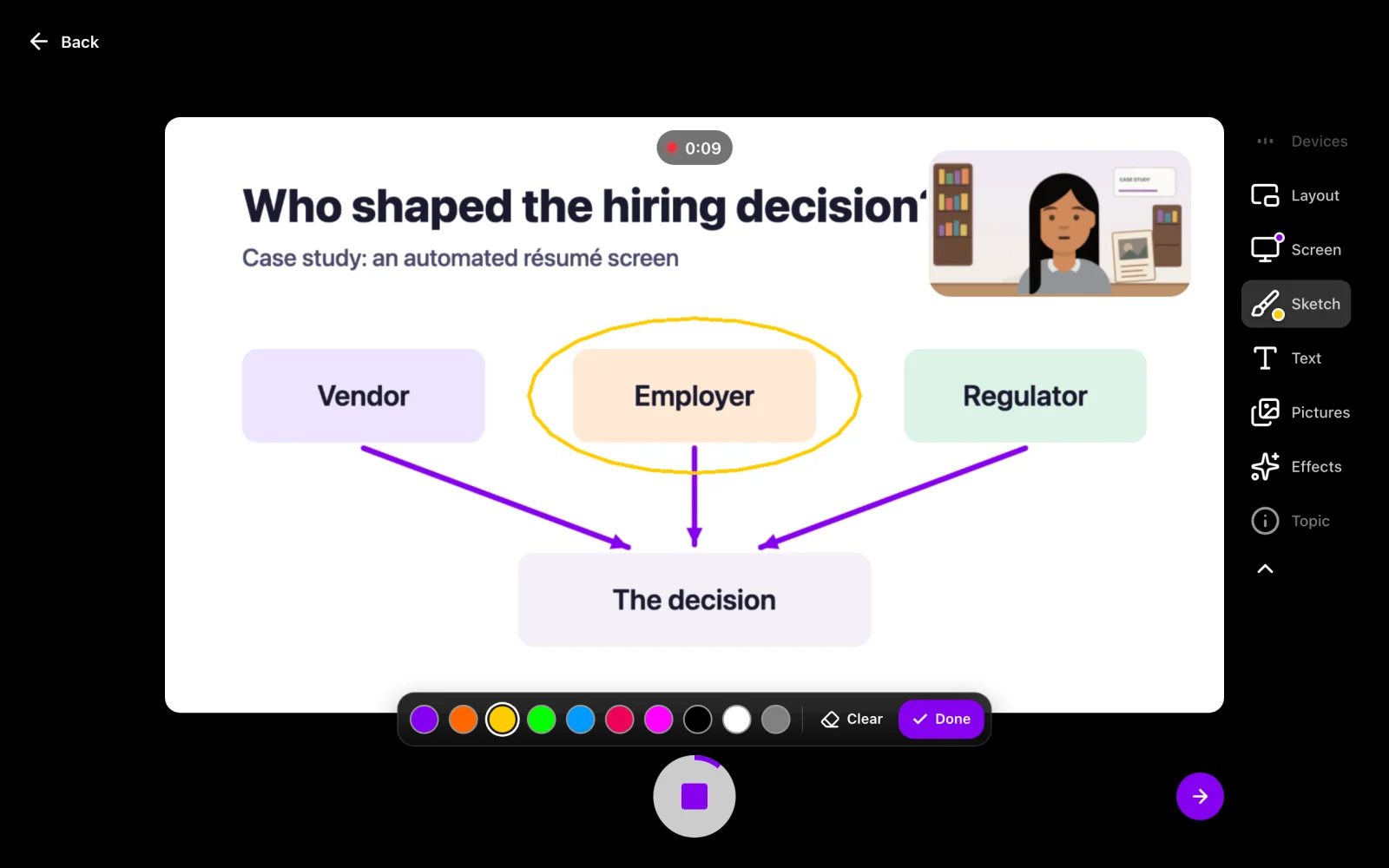
Share a tab, a window or the whole display. Keep your camera in a corner, split the frame, or hide the camera and record the screen with your voice. You can switch between them during a take.
Draw, type and add pictures
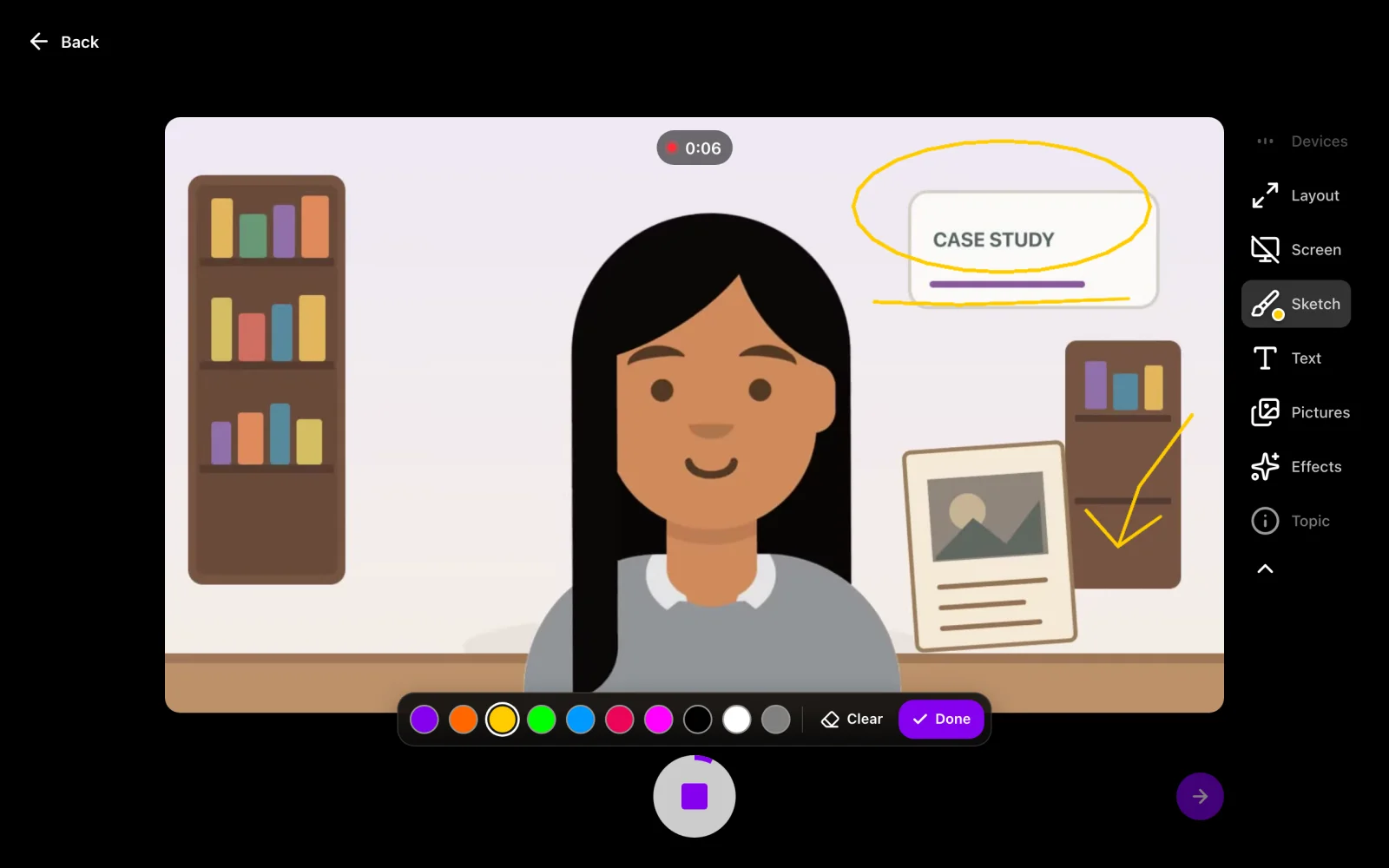
Sketch over the picture as you explain, add a line of text, or place a picture in the frame. Whatever you see while recording is what ends up in the video.
Blur your background, or add a filter
Blur the room behind you or swap it for one of nine scenes, and add a colour or face filter if you like. The effects run in your browser, on your device.
A take runs up to 90 seconds. Vivipod Plus raises that to 5 minutes.
Recordings are up to 720p. There is no 4K option.
Downloads are MP4 files.
Sending someone a link to the video, or posting it to a class, needs a free account. Recording and downloading do not.
Where it works
Chromebook, Windows and Mac, in a current browser
Phones, where it records upright
School devices that block extensions, as long as the school allows the site and the camera
When another recorder is the better choice
This recorder is built for short takes: an answer, an explanation, a quick demonstration. For a full lecture or a long tutorial, use one made for long recordings. A Chromebook has a screen recorder built in, and several others run in the browser.
The recorder is one half of Vivipod. The other half is async video discussion: ask a question, collect a short take from every student, and let them reply to each other on their own time. Students record with the same tools, and you choose who can see the answers.
Yes. Recording and downloading are free, with no ads and no card. A paid plan, Vivipod Plus, is for longer takes and larger classes.
No. The recorder runs in a browser tab, so there is nothing to install, and you can record and download without signing in. A free account is only needed to share a video by link or post it to a class.
Each take runs up to 90 seconds, and you can pause and resume inside it. Vivipod Plus raises the limit to 5 minutes. For a long lecture or tutorial, a recorder built for long recordings will suit you better.
Yes. Turn on Screen to share a tab, a window or the display, then pick a layout: your camera in a corner, a split, or the screen alone with your voice.
Yes. Open Effects and choose Backdrop, then Blur or one of nine scenes. It runs in your browser, so the picture of your room is not sent anywhere to be processed.
An MP4 file at up to 720p, which plays on phones and computers and uploads to most sites without converting.
A take stays in your browser, on your device, until you download it or sign in and post it. Drafts are kept in the same browser so you can come back to them.
It runs in Chrome with no extension, so there is nothing for an administrator to install. A school can still block the site or the camera, and in that case it will not load.